Guide
How to use Overland: the Tracker screen, trips, and the ways to use the app from around iOS.
Tracker screen
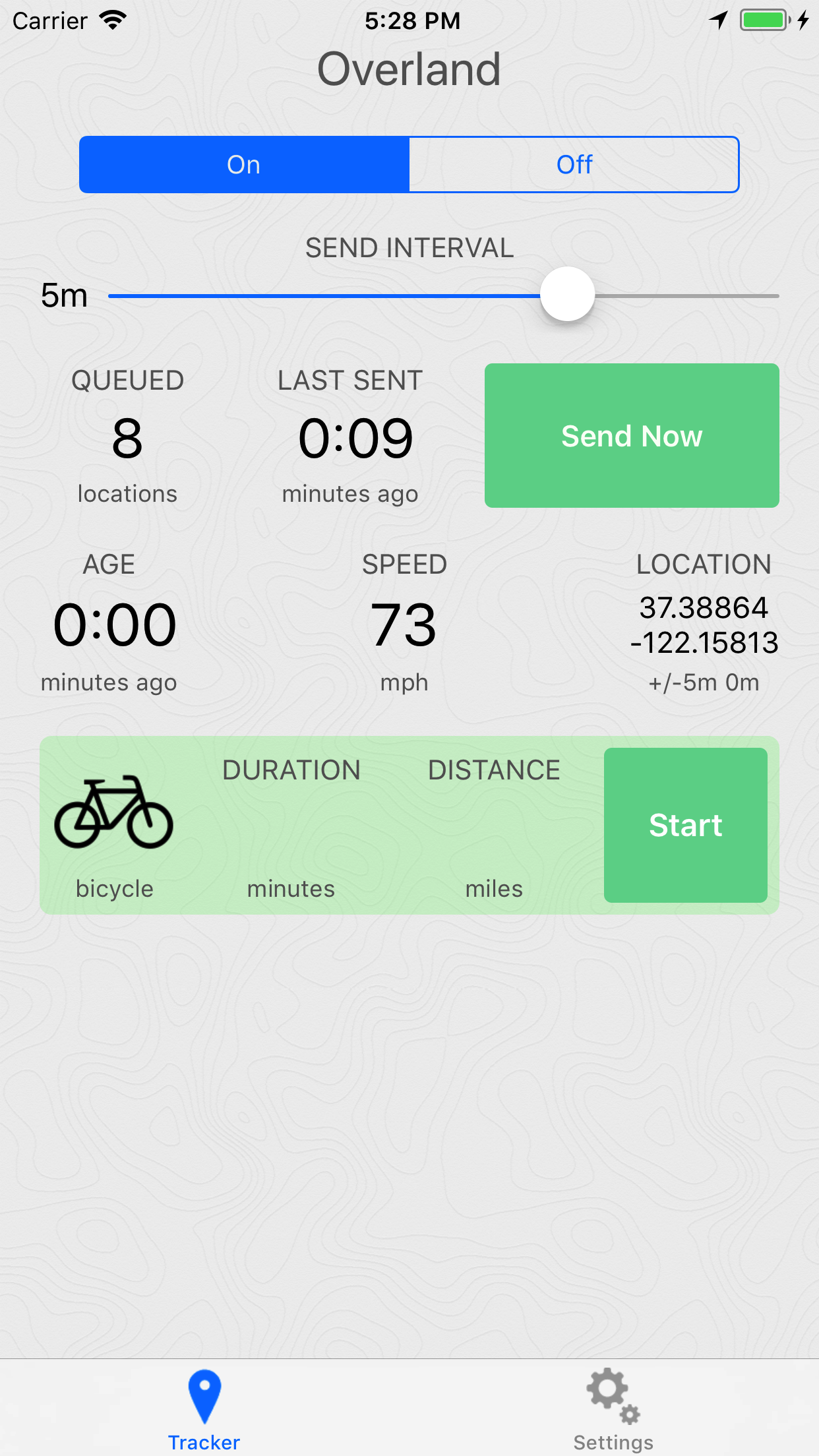
The Tracker screen is where you control whether the app is active, and shows you some basic stats of what the app is doing. This is also where you start and stop trips.
- Age
- The age of the last location point that was reported by the OS. You can use this to get a sense of how much data you are recording.
- Location
- Shows the latitude/longitude, accuracy, and altitude of the last location update received.
- Speed
- The speed of the last location update received. Below the speed you'll see the activity type, such as "stationary" or "driving".
- Queued
- How many location points are stored in the app's internal database that are not yet sent.
- Last Sent
- How long ago the last batch was successfully sent to the server.
- Send Now
- Sends the queued data to the server immediately.
- Send Interval
- This slider controls the interval at which the app sends data to the server. Using the network connection is a huge source of battery drain, so you can save battery by sending infrequently to the server. The slider's range is from 1 second to 30 minutes, and the rightmost option is "off" which disables sending. This is useful when you know you don't have a network connection such as during flights. Data is queued up and will be sent once you enable sending later.
- Icon
- The mode of transport that will be written for the trip record. Tap it to choose a different trip mode.
- Duration
- When a trip is active, how long the trip has been going for.
- Distance
- When a trip is active, how far has been traveled in this trip.
- Start/Stop
- Starts and stops a trip. After stopping a trip, the trip record is written to the database and sent to the server along with the location points.
Trips
Start a trip to record a bike ride, run, walk, car trip, train trip and more. While a trip is in progress, every point includes the trip's ID and mode, and when the trip ends, a trip record with its mode, duration and distance is sent to your server along with the points.
The app uses the Trip Settings while a trip is in progress, so you can, for example, record low-frequency updates continuously and high-frequency updates during a trip. If tracking was off when the trip started, it turns back off when the trip ends.
Besides the Tracker screen, you can start and end trips from the Live Activity, Shortcuts and Siri, the widgets and controls, and the quick actions on the app icon.
Trip modes
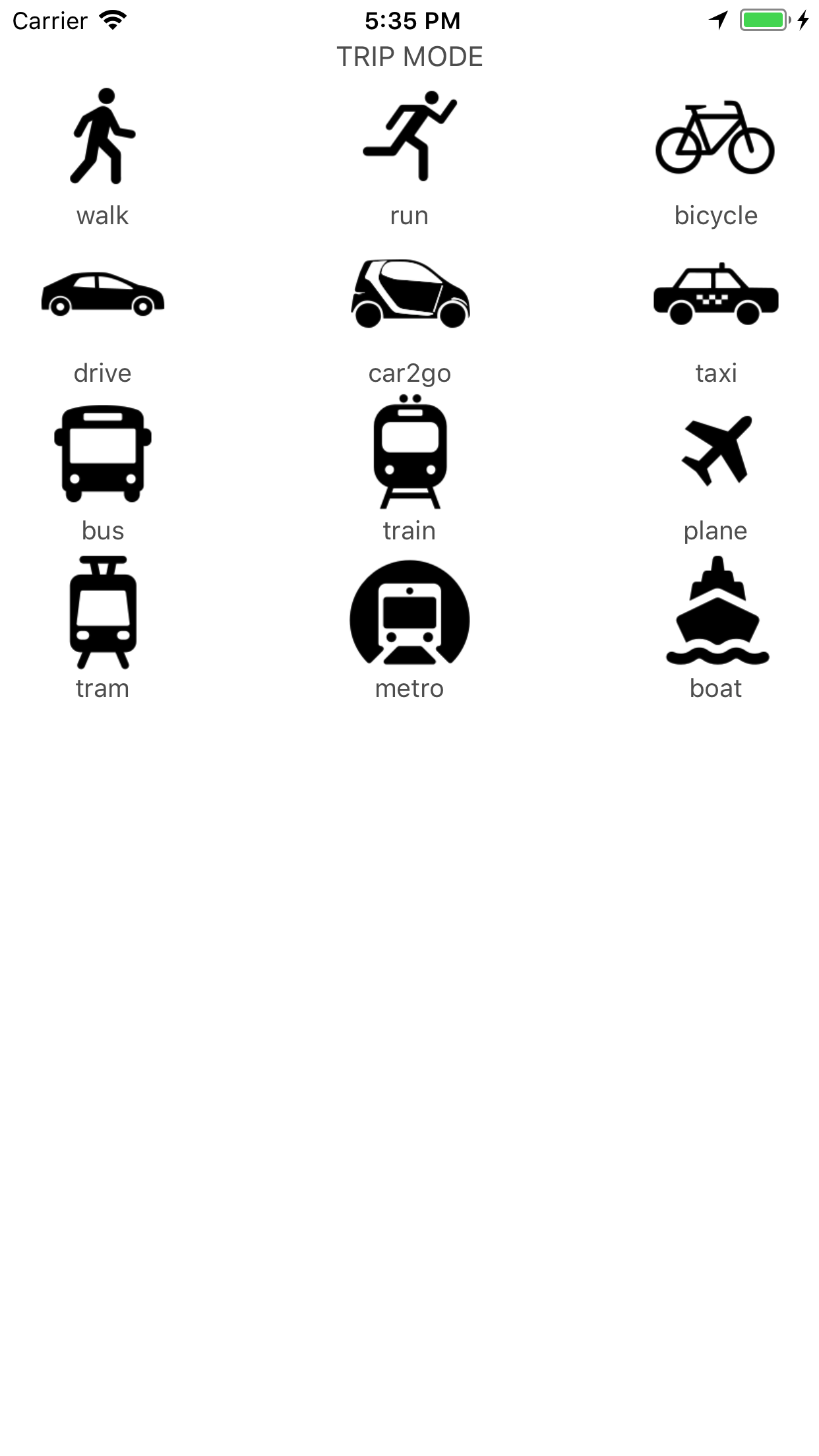
Each trip has a mode, such as Walk, Bicycle, Car or Train. Tap the trip mode icon on the Tracker screen to choose one.
Under Trip Settings → Trip Modes you can add your own trip modes, and rename, reorder or delete the built-in ones. You can also open this from the Edit button on the trip mode picker. Each mode has:
- Name
- What's shown in the app, Siri and widgets. Renaming a mode doesn't change its server value.
- Icon
- Choose from Overland's own icons, or one of Apple's SF Symbols. The icon is sent to your server with the trip record; for an SF Symbol, only the symbol's name is sent.
- Apple Health workout
- The workout type the trip is saved as, if Save to Apple Health is on, or none.
- Map zoom
- How close the Tracker map zooms in.
- Server value
- What's sent to your server as
trip_modeand as the trip'smode. It's the mode's ID unless you change it, so you can match whatever values your server expects. A new mode's ID is made from its name, such askayak, and the built-in modes use the IDs listed undertrip_mode.
"Restore Default Modes" brings back deleted built-in modes and resets their settings, and keeps your own modes. Built-in modes added in an app update are added to the end of your list.
Live Activity
Turn on "Show trip as Live Activity" in Trip Settings to show the trip in progress on the Lock Screen and in the Dynamic Island, with its mode, elapsed time, distance and speed. On iOS 17 and later it has buttons to send the queued data now and to end the trip.
Shortcuts and Siri
On iOS 17 and later, Overland's actions are available in the Shortcuts app, Siri, Spotlight and the Action button. You can also use them in Shortcuts automations, for example to start a car trip when your phone connects to CarPlay, or to turn tracking on when you leave home.
- Start Trip
- Starts a trip, optionally in a given mode, including modes you've added. Siri understands phrases like "Start a bike trip in Overland".
- End Trip
- Ends the trip in progress ("End my trip in Overland").
- Send Data Now
- Sends the queued data now ("Send Overland data now").
- Turn Tracking On or Off
- The same as the Tracking Enabled switch in Settings.
- Get Tracking Status
- Returns whether Overland is tracking, the trip in progress, how many points are queued, and when data was last sent ("Is Overland tracking").
- Set Trip Mode
- Sets the mode for the next trip, or changes the mode of the trip in progress.
- Set Trip Activity Type and Set Trip Location Accuracy
- Change the same settings as the Trip Settings screen. The accuracy applies right away during a trip, and the activity type applies from the next trip.
When a trip started from a shortcut ends, tracking is turned back off if it was off before the trip, the same as starting a trip in the app.
Starting and ending trips and turning tracking on or off in the app also lets Siri learn when you usually do them, so it can suggest them.
Widgets and controls
- Home Screen widget
- Shows whether Overland is tracking, or the trip in progress with its mode, elapsed time and distance, plus how many points are queued and how long ago data was last sent. On iOS 17 and later it has buttons to start or end a trip, and in the medium size, to send the queued data now. The Start button shows the mode the trip will use.
- Lock Screen widgets
- The same information in the rectangular, circular and inline Lock Screen sizes.
- Controls
- On iOS 18 and later, add the "Overland Trip" toggle or the "Send Overland Data" button to Control Center, the Lock Screen or the Action button.
Apple Health
Turn on "Save to Apple Health" in Trip Settings to save trips to Apple Health as workouts, with their distance and GPS route, when the trip ends. It's off by default.
Only trip modes that have an Apple Health workout type are saved: by default Walk (Walking), Run (Running), Hike (Hiking), Bicycle (Cycling), Ski (Downhill Skiing), Snowboard (Snowboarding) and Skate (Skating), and you can choose the type for any mode under Trip Modes. The mode at the end of the trip decides the workout type.
If you also record workouts on an Apple Watch, the same activity may show up twice. If a workout can't be saved, the reason appears under the switch, and the app tries again the next time it starts.