Settings
Overland gives you fine-grained control over how the tracker behaves, from the iOS location settings to how and when data is sent.
Settings screen
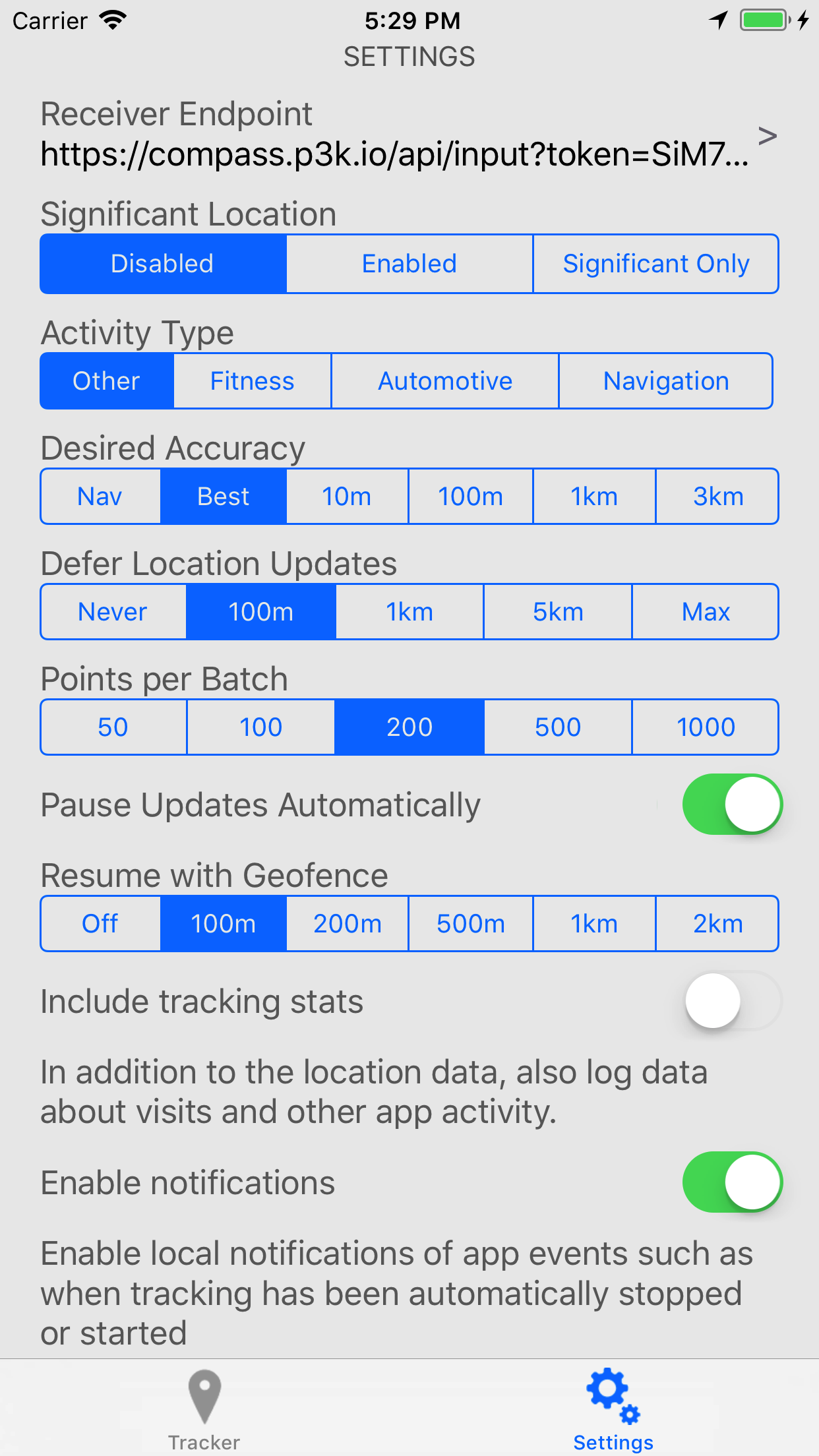
The Settings screen allows you to set the various options in the Overland app as well as parameters of the iOS CoreLocation API.
- Server URL
- Tap this line to set the endpoint that the app will send data to. You can also configure a device ID which will be included in each record, and an access token which will be sent in the HTTP Authorization header. You can also choose to save data to iCloud Drive instead of a server. See the API for what the app sends, and how to set this up with a link.
- Tracking Enabled
- Enables and disables tracking globally. When it's set to off, the app stops requesting location updates, and won't record or send any more data.
iOS settings
The settings in this section set properties on the CoreLocation API. They are meant to give you direct control over how you want to tell the operating system to deliver data to the app. It is worth reading the iOS documentation for more details, but a summary of them is below.
- Continuous Tracking Mode
-
- "Standard" will request continuous location updates in the background. Use this if you want to be able to draw detailed tracks of your travels.
- "Significant Location" will register for significant location changes. Significant change events are triggered for example when you move to a new cell tower or when your nearby visible wifi access points change. It's not an exact science, and may be triggered more or less often than you expect. This will result in much less data collected, but will also use barely any noticeable battery.
- "Both" will request both types of updates.
- Visit Tracking
- Enables "Visit" tracking, which will record an update when the phone gets to a new location after about 3 minutes.
- Desired Accuracy
- Sets the desiredAccuracy property of the location manager. This is only a request for the general level of accuracy, not a guarantee. Setting to "Best" will use the most battery but will get highest accuracy location updates. Setting to "3km" will save the most battery but will result in infrequent location updates.
- Activity Type
- According to Apple, "The location manager uses the information in this property as a cue to determine when location updates may be automatically paused." See activityType for more details. The "Boat" option is only available on iOS 27 and later.
- Show Background Location Indicator
- Setting this to "Always" will cause the location indicator in your iOS menu bar to be activated whenever the app is tracking your location. With the visible indicator, your app is more likely to continue to receive data in the background according to this post on the Apple forums.
- Pause Updates Automatically
- Enabling this will use the iOS API for automatically pausing location updates. When disabled, it will prevent the OS from pausing location updates. Pausing location updates automatically is a great way to save battery when you are not moving for extended periods of time, although it does not always pick up tracking again immediately when you start moving. In some initial testing, the automatic pause tends to trigger about 10 minutes after you've stopped moving.
- When you first launch the app, you'll need to request location permissions from the button here. Once you've requested permission twice, you should see it say "Always", which means the app will be able to collect data in the background. If you change the value in the iOS Settings app, this will show you the current status to help you troubleshoot why the app isn't getting updates in the background anymore.
Overland settings
The settings in this section control features specific to the Overland app.
- Logging Mode
-
- "All Data" will save every location update received and send to the server in a batch.
- "Only Latest" will send only one update to the server at a time based on the sending interval. If you configure the endpoint URL to send data in the query string then you should use this setting. Experiment with the other settings to control how frequently you get data sent from the app.
- "Owntracks" will change the format of the data logged to Owntracks format, and will also send only one location update at a time. This can also be used with Home Assistant.
- Locations per Batch
- Controls the number of location updates that will be sent with each HTTP request when in "All Data" mode. Setting this to 50 will mean more requests to the server are required to flush the queue, but each request will be smaller. Setting this to 1000 means you'll be able to flush the queue with fewer requests, but each request will be much larger. Each location point can be around 600 bytes when serialized as JSON, so sending 1000 points in a request will mean the request body may be around 600kb. Lower batch sizes are likely better for flaky network connections, and larger batch sizes are good when on a reliable connection. Note that this does not affect the frequency at which data is sent to the server.
- Resume with Geofence
- This is an attempt at overcoming the limitations of the "Pause Updates Automatically" feature. Setting a radius here will register an "exit" geofence whenever location updates are paused at that location. This will attempt to get the app woken up when the user leaves the area again, and when triggered, will resume tracking with the previous settings.
- Min Distance Between Points
- When set, the app will discard any location updates closer than the distance selected. For example you can set the value to 50 meters to only record an update if the phone moves 50 meters from the last location. Note: This does not have a noticeable effect on battery life, since the OS will have already delivered the location data to the app by this point.
- Min Time Between Points
- When set, the app will discard any location updates received within the selected amount of time. For example you can set the value to 10 seconds to record an update at most every 10 seconds. Note: This does not have a noticeable effect on battery life, since the OS will have already delivered the location data to the app by this point. The default is 1 second.
- Discard points without GPS
- When enabled, the app will discard any location update that has neither an altitude nor a speed. iOS doesn't indicate whether a location came from GPS, but these points usually come from wifi or cell tower positioning, and can be far from where the phone actually is. Off by default.
- Discard points while stationary
- When enabled, the app will discard location updates while the phone's motion sensors report that it is stationary and not walking, running, cycling or driving, which avoids collecting many points from GPS drift while the phone sits still, such as overnight. The first point after stopping is kept so the server knows where you stopped, and then one point an hour while the phone stays still, so a gap of more than an hour means data is missing rather than the phone sitting still. Recording resumes as soon as the phone reports walking, running, cycling or driving. This needs Motion & Fitness access; without it, no points are discarded. Off by default.
- Enable notifications
- Toggle whether the app should send push notifications about events such as when tracking has been automatically stopped and started.
- Configure Wifi Zones
- You can configure wifi zones to force the app to report an exact location whenever you're connected to a specific wifi SSID. This is useful if you don't want to collect a bunch of noisy data when you're at home or at work. Tap + to add a zone, which starts with the wifi network you're connected to and your current location. Tap a zone to edit it, or swipe to delete it. A zone can also be limited to one access point, which is useful when one wifi network covers a large area, like a campus. New zones are limited to the access point you're connected to; turn off "This access point only" to match the whole network. A zone for an access point takes priority over a zone for the whole network.
Trip settings
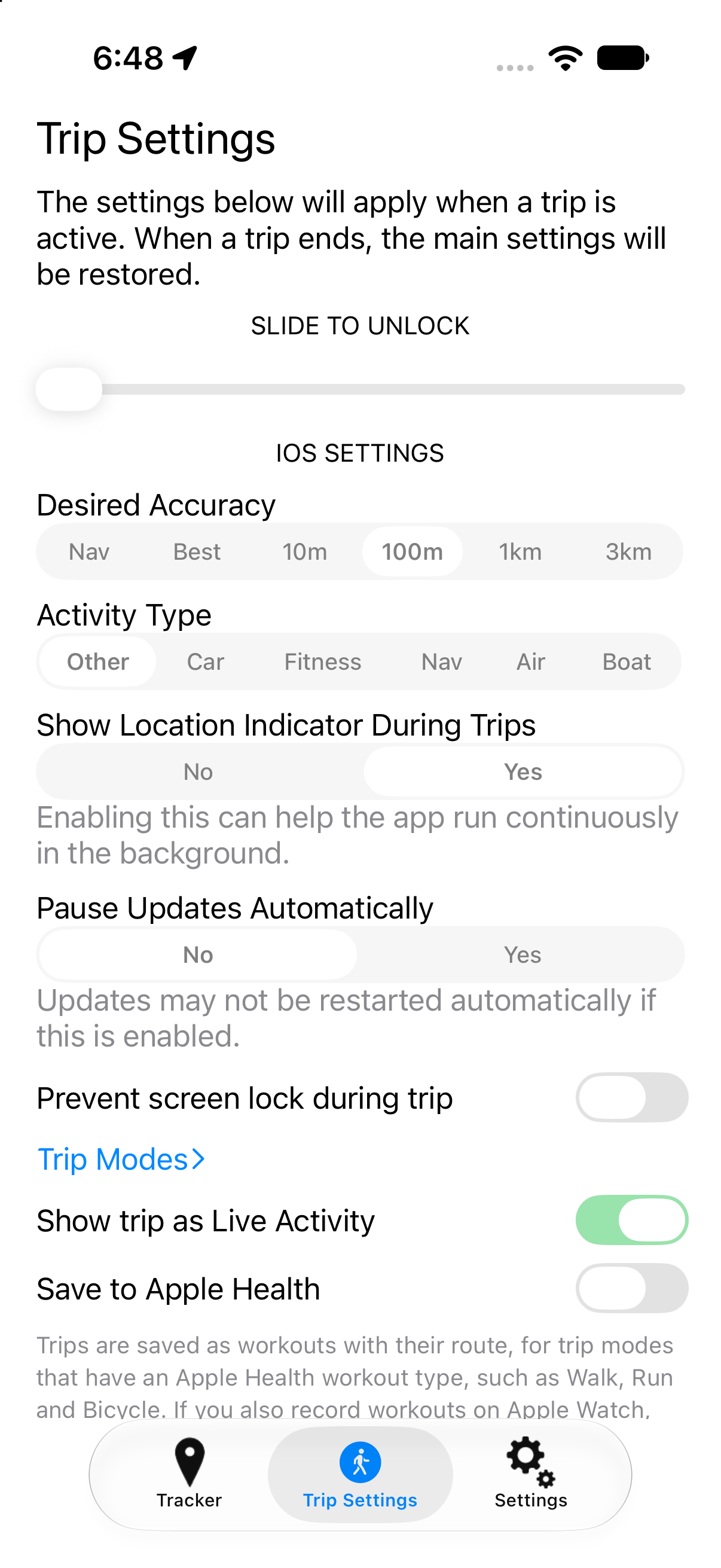
The "Trip Settings" tab contains most of the same options as the main settings tab, but these values only apply when a trip is in progress. When a trip starts, the app will apply these settings, and when a trip ends, will revert to the main settings.
You can use this for example to record low-frequency updates continuously, but then log high-frequency updates when you start a trip.
There are some additional settings specific to trips:
- Show Location Indicator During Trips
- Choose whether you want the device to show the location indicator when a trip is in progress. Enable this to help the app run continuously in the background.
- Prevent screen lock during trip
- Does what it says. This is another way you can be sure the app won't get killed by iOS in the background.
- Trip Modes
- Add your own trip modes, and rename, reorder or delete the built-in ones. See Trip modes.
- Show trip as Live Activity
- Shows the trip in progress on the Lock Screen and in the Dynamic Island. See Live Activity.
- Save to Apple Health
- Saves trips to Apple Health as workouts, with their distance and GPS route. See Apple Health. Off by default.
Settings in the iOS Settings app
There are some additional settings in the iOS Settings app, under Apps → Overland, that are not shown in the app itself. These are settings that are rarely changed.
- Include tracking stats
- Toggle whether to include visit and app metadata in the log as well. This is useful when trying to understand the app lifecycle and how the various tracking settings affect the app's behavior, but you probably don't want it enabled for production passive tracking usage. See the properties it adds.
- Consider HTTP 2XX Successful
- By default, the server has to respond with a specific JSON response (
{"result":"ok"}) in order to tell the app it has received the data and to delete the stored cache. Turning this on will consider any HTTP 2xx response code successful. Only use this if you are unable to send the JSON response from your server software, as this may inadvertently lose data if your server has errors. - Include Unique ID in Logs
- Turn this on to include an additional
unique_idin every record. This is the phone's "Unique ID" generated by Apple. The value cannot be customized, so you can use it as a reliable way to identify unique devices.
Usage profiles
You should decide what kind of data you are hoping to get out of this application. The controls provided will give you a lot of knobs you can turn to adjust the way the app collects data. Below are some recommended presets for different applications.
High resolution tracking
To get high resolution data, you should set the following:
- Pause Updates Automatically: Off
- Resume with Geofence: Off
- Tracking Mode: Standard
- Activity Type: Other
- Desired Accuracy: Best
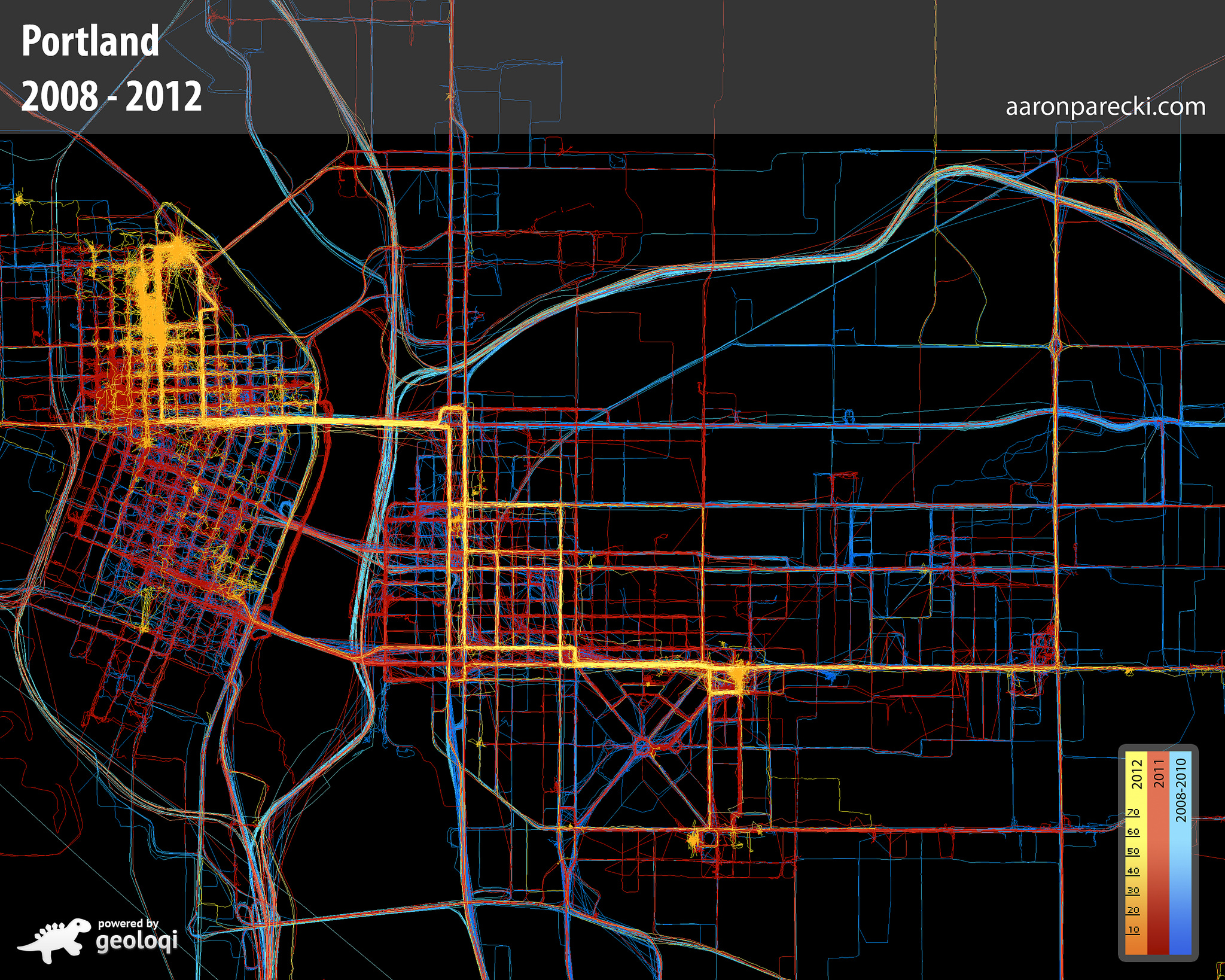
While moving, you will receive up to one point per second. When you're not moving, such as when you're at your desk, there may be several minutes between location updates received. This will use a lot of battery, but will result in data that can be used to generate a picture similar to this level of detail.
Battery saving / low resolution
To use very little battery, you can still get enough location info to know what neighborhood you're in, and likely also when you leave and return home.
- Pause Updates Automatically: On
- Resume with Geofence: 500m
- Tracking Mode: Significant Location
- Activity Type: Other
- Desired Accuracy: 100m
This will use much less battery than high resolution, while still gathering enough data you can use to roughly geotag posts or know what neighborhood you're in. For even more battery savings, you can set Significant Location Only, which will drastically reduce the amount of data you log but will use almost no battery.